Recommended for you
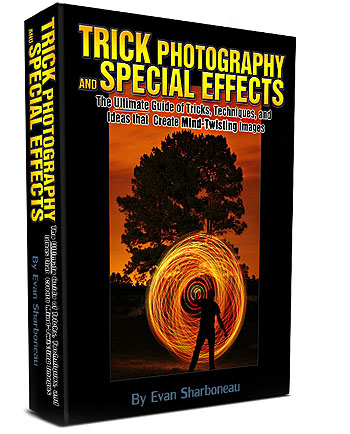
-
Recent Posts
- Projector Photography Tutorial + Aaxa M4 / M5 / M6 Review
- UV Blacklight Photography Tutorial (Ultraviolet-Induced Visible Fluorescence)
- Wineglass Splash Studio Photography Tutorial
- My Photography: Best of 2013
- Photography Masterclass is Now Online!
- High-Speed Powder Photography Tutorial
- Glowing Lines Photoshop Tutorial
- Open-Source DSLR Announced: D800o (April Fools)
- Multiple Exposure Photography Tutorial
- My Photography: Best of 2012
- Hybrid Image Optical Illusion (Photoshop Tutorial)
- Snow Photography and Special Effects (DSLR Tutorial)
- DSLR Basics: Stops and Metering
- “A Room Filled with an Obnoxious Amount of Money”
- My Photography: Best of 2011
- Trick Photography and Special Effects 2.0 Now Online
- High-Speed Photography with Splashes, Flashes, and a Fish Tank (Photography Tutorial)
- Photoshop CS5: Surreal Portrait Photo-Manipulation (Advanced Tutorial)
- Orbs – Long Exposure Light Painting Photography – Video Tutorial
- Steel Wool Photography Tutorial
- Fake Smoke with Flashlight and String – Photography Tutorial
- How To HDR (Simple)
- Floating Banana Photoshop Tutorial
- How To Take Psychedelic Photos of CDs
- My Photography: Best of 2007-2010
- Photoelasticity Birefringence Photography Tutorial
- What’s In My Camera Bag? A Review of All My Photographic Camera Equipment
- Photoshop Tutorial: Rearrange Keys on your Keyboard
- Photoshop A Digital Clock To Say Anything
- Bokeh Photography Tutorial
- Trick Photography Optical Illusion: Hand Reaching Into Computer Monitor
- Photographic Special Effects with Christmas Lights
- How To Photograph A Flying Cat
- Finally, Trick Photography and Special Effects is Now Available
- 11 Explosive Sparkler Photographs
- Star Trails Tutorial
- Nikon Announces New Open Source Camera
- 20 Stunning Examples of Multiplicity Photography
- Bug Eyed Photography Tutorial
- If I were to make you a huge photo tutorial package…
- How To Create Physiogram Long Exposure Photographs
- Photoshop Flesh, Skin, and Body Parts Onto Eachother Using Photo Manipulation
- Long Exposure Effects for the Experimental Photographer
- 42 Reasons Why Nikon (and Canon) Suck
- How To Enhance Your Landscape Photographs To Be More Colorful In Adobe Camera RAW
- Multiplicity Photography Tutorial
- Distort Faces in CS4 by using Content Aware Scale
- Scanner Art: How to Melt your face by Scanning it With A Scanner
- How To Make A Photorealistic Pixelated Animated GIF in Photoshop
- Make Symmetric Symmetric Faces in Photoshop: Cat
-
Entries
- Projector Photography Tutorial + Aaxa M4 / M5 / M6 Review
- UV Blacklight Photography Tutorial (Ultraviolet-Induced Visible Fluorescence)
- Wineglass Splash Studio Photography Tutorial
- My Photography: Best of 2013
- Photography Masterclass is Now Online!
- High-Speed Powder Photography Tutorial
- Glowing Lines Photoshop Tutorial
- Open-Source DSLR Announced: D800o (April Fools)
- Multiple Exposure Photography Tutorial
- My Photography: Best of 2012
- Hybrid Image Optical Illusion (Photoshop Tutorial)
- Snow Photography and Special Effects (DSLR Tutorial)
- DSLR Basics: Stops and Metering
- “A Room Filled with an Obnoxious Amount of Money”
- My Photography: Best of 2011
- Trick Photography and Special Effects 2.0 Now Online
- High-Speed Photography with Splashes, Flashes, and a Fish Tank (Photography Tutorial)
- Photoshop CS5: Surreal Portrait Photo-Manipulation (Advanced Tutorial)
- Orbs – Long Exposure Light Painting Photography – Video Tutorial
- Steel Wool Photography Tutorial
- Fake Smoke with Flashlight and String – Photography Tutorial
- How To HDR (Simple)
- Floating Banana Photoshop Tutorial
- How To Take Psychedelic Photos of CDs
- My Photography: Best of 2007-2010
- Photoelasticity Birefringence Photography Tutorial
- What’s In My Camera Bag? A Review of All My Photographic Camera Equipment
- Photoshop Tutorial: Rearrange Keys on your Keyboard
- Photoshop A Digital Clock To Say Anything
- Bokeh Photography Tutorial
- Trick Photography Optical Illusion: Hand Reaching Into Computer Monitor
- Photographic Special Effects with Christmas Lights
- How To Photograph A Flying Cat
- Finally, Trick Photography and Special Effects is Now Available
- 11 Explosive Sparkler Photographs
- Star Trails Tutorial
- Nikon Announces New Open Source Camera
- 20 Stunning Examples of Multiplicity Photography
- Bug Eyed Photography Tutorial
- If I were to make you a huge photo tutorial package…
- How To Create Physiogram Long Exposure Photographs
- Photoshop Flesh, Skin, and Body Parts Onto Eachother Using Photo Manipulation
- Long Exposure Effects for the Experimental Photographer
- 42 Reasons Why Nikon (and Canon) Suck
- How To Enhance Your Landscape Photographs To Be More Colorful In Adobe Camera RAW
- Multiplicity Photography Tutorial
- Distort Faces in CS4 by using Content Aware Scale
- Scanner Art: How to Melt your face by Scanning it With A Scanner
- How To Make A Photorealistic Pixelated Animated GIF in Photoshop
- Make Symmetric Symmetric Faces in Photoshop: Cat
Recommended for you